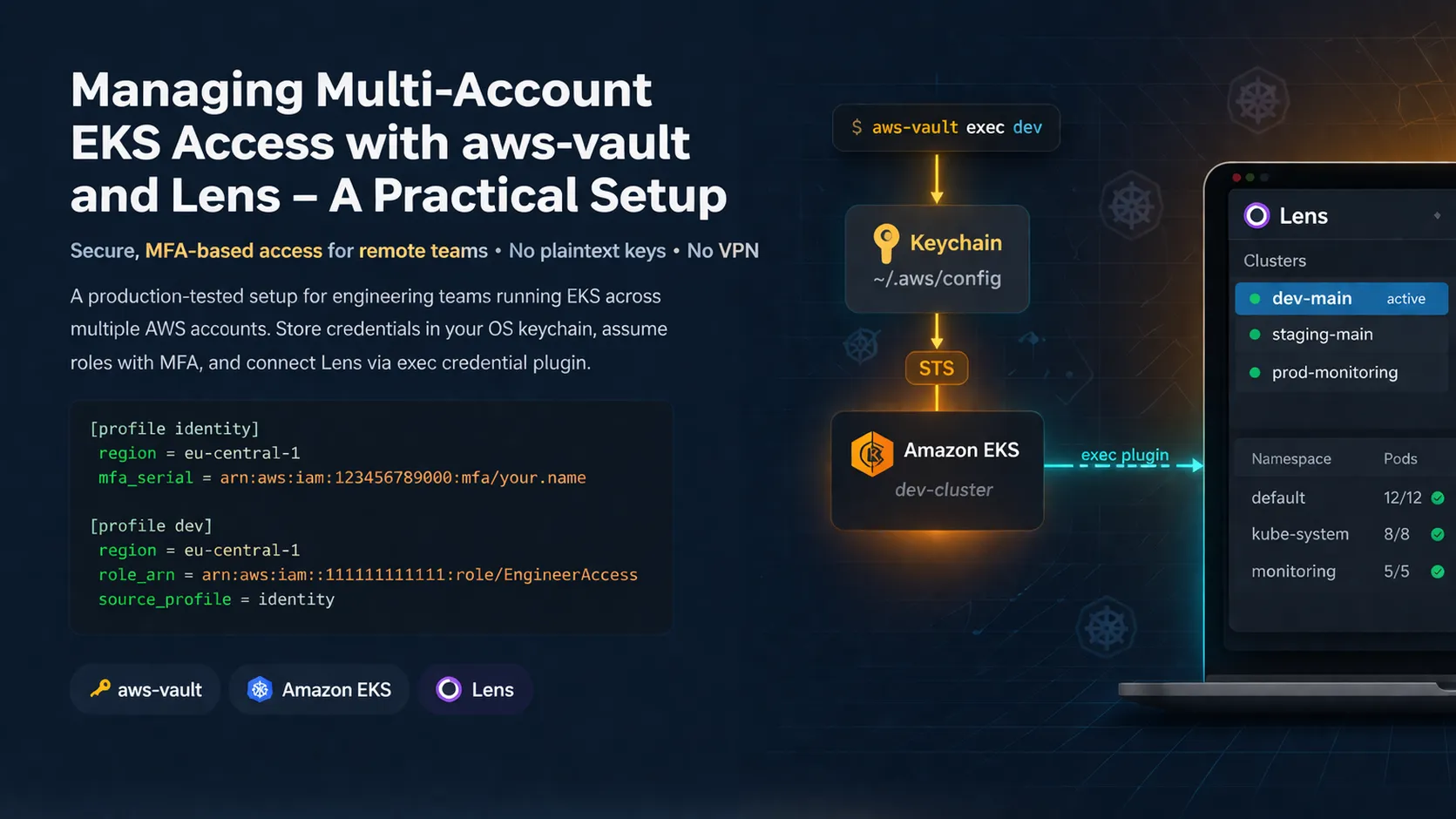
Managing Multi-Account EKS Access with aws-vault and Lens – A Practical Setup

By: Dzhuneyt Ahmed
Posted · 11 min read
If you're running EKS clusters across multiple AWS accounts with a small remote team, you've probably hit the same friction I did: getting everyone secure access to the right clusters without credentials ending up in plaintext files, shell history, or Slack DMs.
There's no shortage of guides on aws-vault, EKS authentication, or Lens individually. What's harder to find is how these tools actually wire together in practice – the config structure, the gotchas, and the workarounds you only discover after a few months of daily use.
This is that guide. It reflects a setup that's been running for a real engineering team across multiple AWS accounts, with BYOD laptops and no VPN.
Why aws-vault
I'll keep this brief – if you already use aws-vault, skip ahead.
The core value proposition is simple: aws-vault stores your AWS credentials in your operating system's keychain (Keychain on macOS, GNOME Keyring or KWallet on Linux) and never exposes them as environment variables or plaintext files. When you need to make an AWS API call, it generates short-lived session tokens via STS on the fly.
If you're still putting access keys in ~/.aws/credentials – stop. That file sits on disk unencrypted. On a BYOD machine you don't fully control, that's a liability.
I won't walk through installation – the official docs cover that well. What I want to focus on is the parts most guides skip.
Multi-account profile structure
The real power of aws-vault shows up when you have multiple AWS accounts with a role-chaining setup. If you're running an AWS Organization – a payer account with sub-accounts for different environments or projects – this pattern lets you avoid creating IAM users in every single account. Engineers get credentials in one central account, and then assume roles into whichever sub-account they need. No duplicate users, no scattered MFA devices, no credential sprawl.
Here's a simplified version of what our ~/.aws/config looks like:
The pattern: one identity account where IAM users and MFA devices live, and then assume-role profiles for each target sub-account. Everyone on the team gets the same config structure – the only difference is their IAM username and MFA device ARN.
A few things worth noting:
source_profiledoes the chaining. You authenticate toidentity, and aws-vault handles the STSAssumeRolecall to get temporary credentials fordev,staging, orproduction.- MFA lives only on the
identityprofile. Once you've passed the MFA gate on the parent account, role assumptions into child accounts don't require additional MFA prompts. Puttingmfa_serialon every profile is overkill for most setups – you'd be entering codes constantly for no real security gain. - No IAM users in the child accounts. The sub-accounts only have IAM roles with trust policies that allow the identity account to assume them. This keeps user management centralized and makes offboarding straightforward – disable one IAM user, and they lose access to everything.
A note on AWS IAM Identity Center (formerly AWS SSO): There's a different way to solve the same problem. Instead of creating IAM users in a parent account and chaining role assumptions, IAM Identity Center gives you a managed identity store (or connects to an external IdP like Azure AD or Okta) and handles the role mapping into child accounts for you. The end result is the same – users authenticate once, then assume roles in sub-accounts without needing IAM users everywhere – but Identity Center handles more of the plumbing. You get a nice SSO portal, built-in MFA, and the AWS CLI supports it natively via aws configure sso.
Many people consider this the cleaner approach, and I'd agree. The IAM user + assume-role setup described in this article is what we're running today, and it works well, but I'm planning to migrate to IAM Identity Center at some point. If you're starting from scratch, it's worth evaluating Identity Center first – you might not need the aws-vault layer at all for credential management, since the CLI's built-in SSO support covers the same ground.
That said, the rest of this article – the EKS kubeconfig wiring, Lens integration, and team workflow – applies regardless of whether your credentials come from aws-vault or Identity Center. The exec credential plugin doesn't care how you got your AWS session.
The session duration dance
This will bite you early. By default, STS session tokens last one hour. If you're deep in debugging an EKS issue, you'll get kicked out mid-investigation.
You can extend this with session_duration and assume_role_ttl in your config:
But here's the catch: assume_role_ttl is capped by the role's MaxSessionDuration setting in IAM. If the role allows a max of 1 hour, setting assume_role_ttl = 4h in your config does nothing. You need to update the IAM role itself. And session_duration = 12h only works for the initial STS GetSessionToken call – the assume-role call is a separate TTL.
In practice, we settled on 12-hour session tokens with 1-hour role assumptions. You enter your MFA code once in the morning, and role assumptions refresh automatically within that 12-hour window without prompting for MFA again. Note that role chaining has a hard 1-hour cap on session duration – this is an AWS limitation, not an aws-vault one.
BYOD and keychain backends
If your team brings their own devices, the keychain backend matters. aws-vault defaults to the OS keychain, which is fine on macOS (Keychain Access handles it transparently). On Linux, it depends on what desktop environment is running – some team members needed to explicitly set the backend:
The file backend is the least convenient (it prompts for a passphrase every time) but works everywhere. Document this for your team or you'll get "aws-vault just hangs" bug reports on day one.
Connecting aws-vault to EKS
This is where the pieces start fitting together – and where the documentation gap is widest.
Updating your kubeconfig
The standard approach is:
The --alias flag is underrated. Without it, your kubeconfig context name defaults to the full cluster ARN, which is an unreadable mess. With aliases, kubectl config get-contexts gives you something human-friendly:
CURRENT   NAME              CLUSTER           AUTHINFO
*         dev-cluster       arn:aws:eks:...   arn:aws:eks:...
          staging-cluster   arn:aws:eks:...   arn:aws:eks:...
The exec credential plugin – get this right
When you run update-kubeconfig, AWS CLI writes an exec block into your ~/.kube/config that looks something like this:
This is the exec credential plugin approach. Every time kubectl (or Lens) needs to authenticate to the cluster, it runs this command to get a fresh token. The problem: this calls aws directly, not aws-vault exec, so it won't find your credentials.
The fix is to replace the command so that aws-vault handles the credential lookup:
Now every token request goes through aws-vault, which pulls credentials from your keychain and handles the STS calls. This works regardless of whether you're inside an aws-vault shell session or not. The one tradeoff: if your session has expired, the token request will trigger an MFA prompt, which can be confusing when it happens inside Lens or a kubectl command that you expected to "just work."
Multiple clusters without context collisions
When you have 3–5 clusters across accounts, kubeconfig management gets messy fast. A couple of things that help:
- Context names follow
<env>-<purpose>:dev-main,staging-main,prod-monitoring. Never use auto-generated ARN-based names. - A shell alias for quick switching:
Or use kubectx if you want fuzzy search and a nicer UX.
Bringing Lens into the picture
Lens is a desktop Kubernetes GUI that reads your kubeconfig and gives you a visual overview of your clusters – pods, deployments, logs, events, resource usage. For day-to-day operations, it beats staring at kubectl get pods -o wide output.
But Lens doesn't natively understand aws-vault's credential wrapping, and this is where people hit a wall.
Making Lens work with the exec credential plugin
With aws-vault set as the command in your kubeconfig, Lens will try to run aws-vault when it needs a token. For this to work:
- aws-vault must be in your PATH as seen by Lens. If you installed it via Homebrew on macOS, it's probably fine. If you installed it somewhere non-standard, Lens (which is an Electron app) might not find it. Symlink it to
/usr/local/bin/to be safe. - Lens needs access to your keychain. On macOS, the first time Lens tries to call aws-vault, you'll get a Keychain Access prompt. Allow it, or Lens will silently fail to authenticate.
- You need an active aws-vault session. If your session has expired, Lens can't prompt you for MFA in its own UI – it'll just show an authentication error. The fix: open a terminal, run
aws-vault exec dev -- echo "session active"to trigger the MFA prompt, and then switch back to Lens.
That last point is the single most common "Lens just shows an error" issue in this setup. It's not a bug – it's a UX gap between a GUI app and a CLI-based credential flow.
Switching between clusters
Lens shows all contexts from your kubeconfig in its sidebar. If you named them well (see the conventions above), switching is just a click. But keep in mind:
- Each context uses its own exec credential chain, so switching from
dev-maintostaging-mainmight trigger a different role assumption. - If you're connected to three clusters simultaneously (Lens supports this), you'll have three active sessions consuming STS tokens. This hasn't been a practical issue for us, but it's worth knowing.
Onboarding a new team member
This is where all the above pays off. When someone new joins the team, the setup steps are:
- IT/admin creates their IAM user in the identity account with MFA enforced. This is the only account where they'll have an IAM user – the child accounts only have roles.
- They install the toolchain: aws-vault, AWS CLI v2, kubectl, Lens.
- They copy the shared
~/.aws/configtemplate and replace the placeholder IAM username and MFA ARN with their own. - They run
aws-vault add identityto store their access key in the keychain. This is the only time they touch a long-lived credential. - They run the
update-kubeconfigcommands for each cluster. - They open Lens, see the clusters, and they're in.
The key insight: no credentials are shared between team members. Everyone has their own IAM user, their own MFA device, and their own keychain. The only shared artifact is the config template.
Rough edges and things that still annoy me
I'm not going to pretend this setup is flawless. Here's what still causes friction after months of use:
- MFA prompt timing is unpredictable. When your identity session expires, the next kubectl command will trigger an MFA prompt in your terminal. If you're in a flow state or in the middle of a piped command, it's disruptive. You learn to re-up your session proactively, but it's still annoying when you forget.
- Lens reconnection after sleep. Close your laptop, open it the next morning, and Lens will show stale data or auth errors until you refresh the session. We've accepted this as a "just restart your session" annoyance.
- aws-vault behaves differently on macOS vs. Linux. The keychain integration is smoother on macOS. On Linux, depending on the desktop environment and distro, you might need to fiddle with D-Bus, keyring daemons, or fall back to the
filebackend. This is the number one onboarding friction point for Linux users. - No good way to share temporary credentials for pair debugging. When someone says "can you look at my cluster for a second?" – there's no clean answer. They share their screen, or you access the cluster through your own role. Which is the right answer, but it's slower.
What I'd change if starting over
Honestly, not much. The core stack – aws-vault for credential management, exec plugin for EKS auth, Lens for visual operations – is solid.
If you're also thinking about how your pods authenticate to AWS services (not just your engineers), EKS Pod Identity is worth a look.
I'd also write an onboarding script that runs all the update-kubeconfig commands in one go. Walking someone through "now run this command, then this one, then this one" works for the first hire, but it doesn't scale and you'll inevitably forget a step.